

MongoDB Cross-Region Disaster Recovery (DR) on AWS EC2: Step-by-Step Guide
Search for a command to run...
No comments yet. Be the first to comment.
The Ops Fix Hub is a dynamic series designed to tackle real-world challenges in the DevOps and CloudOps domains. "Breaking Down Barriers, One Ops Fix at a Time."
In today’s cloud-native world, ensuring the continuous availability of data across regions is crucial. Amazon DynamoDB Global Tables offer a powerful, fully managed solution for building active-active cross-region architectures with built-in replicat...
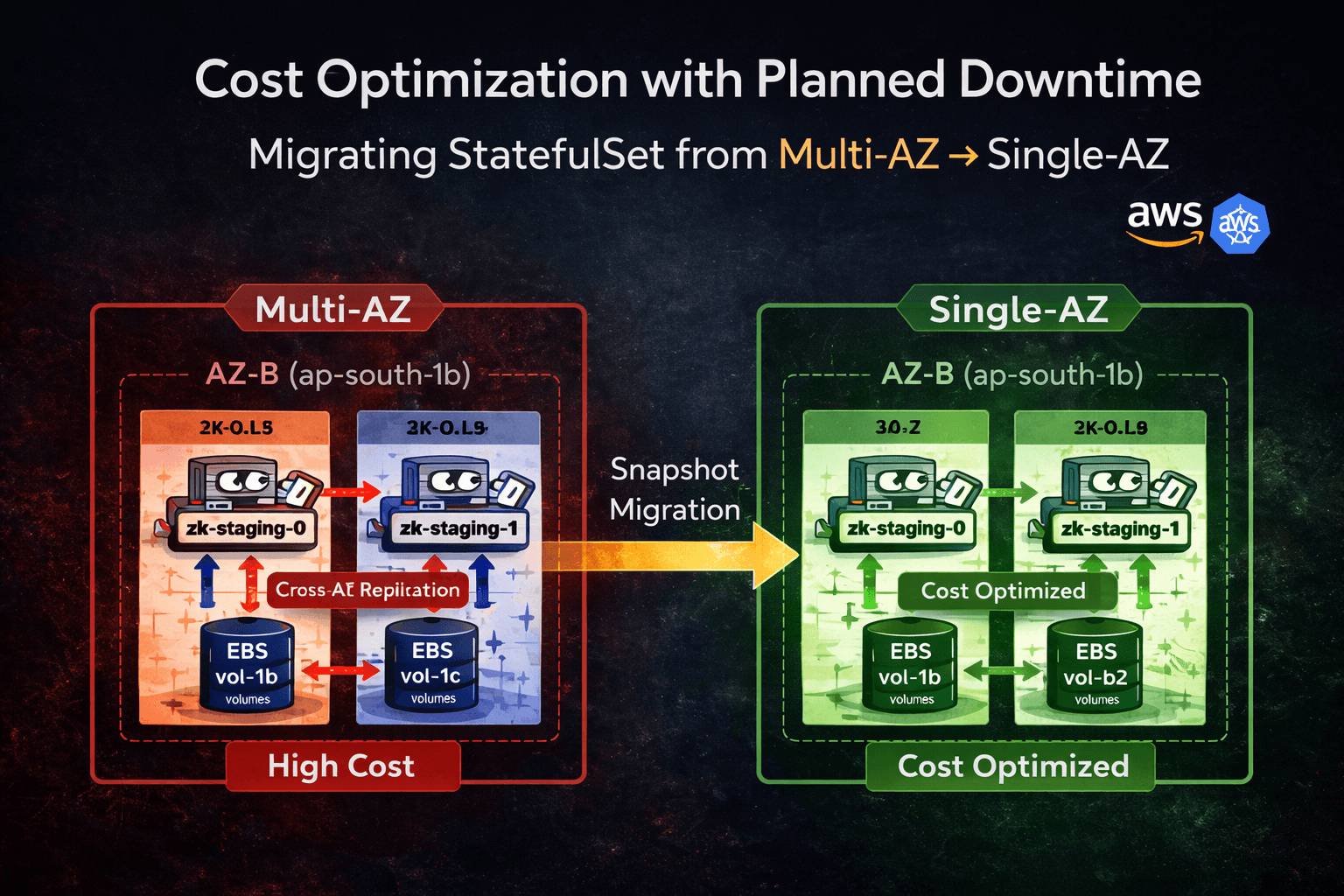
This migration was performed on a production workload where cost reduction was prioritized over zone-level high availability.
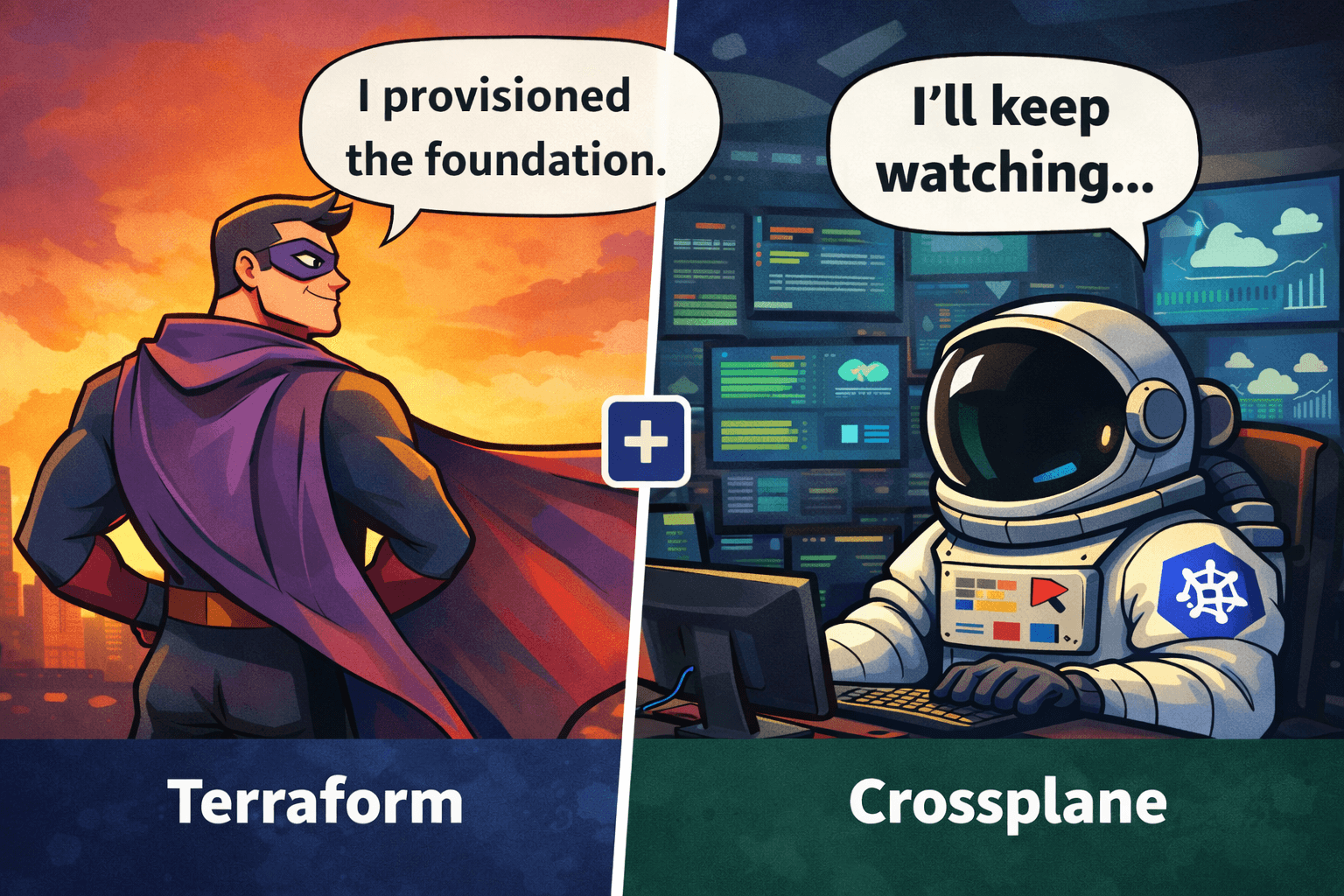
1. Overview What I Designed I designed a hybrid infrastructure architecture: Terraform → Foundation Layer Crossplane → Dynamic Lifecycle Layer ArgoCD → GitOps Enforcement This created a continuou
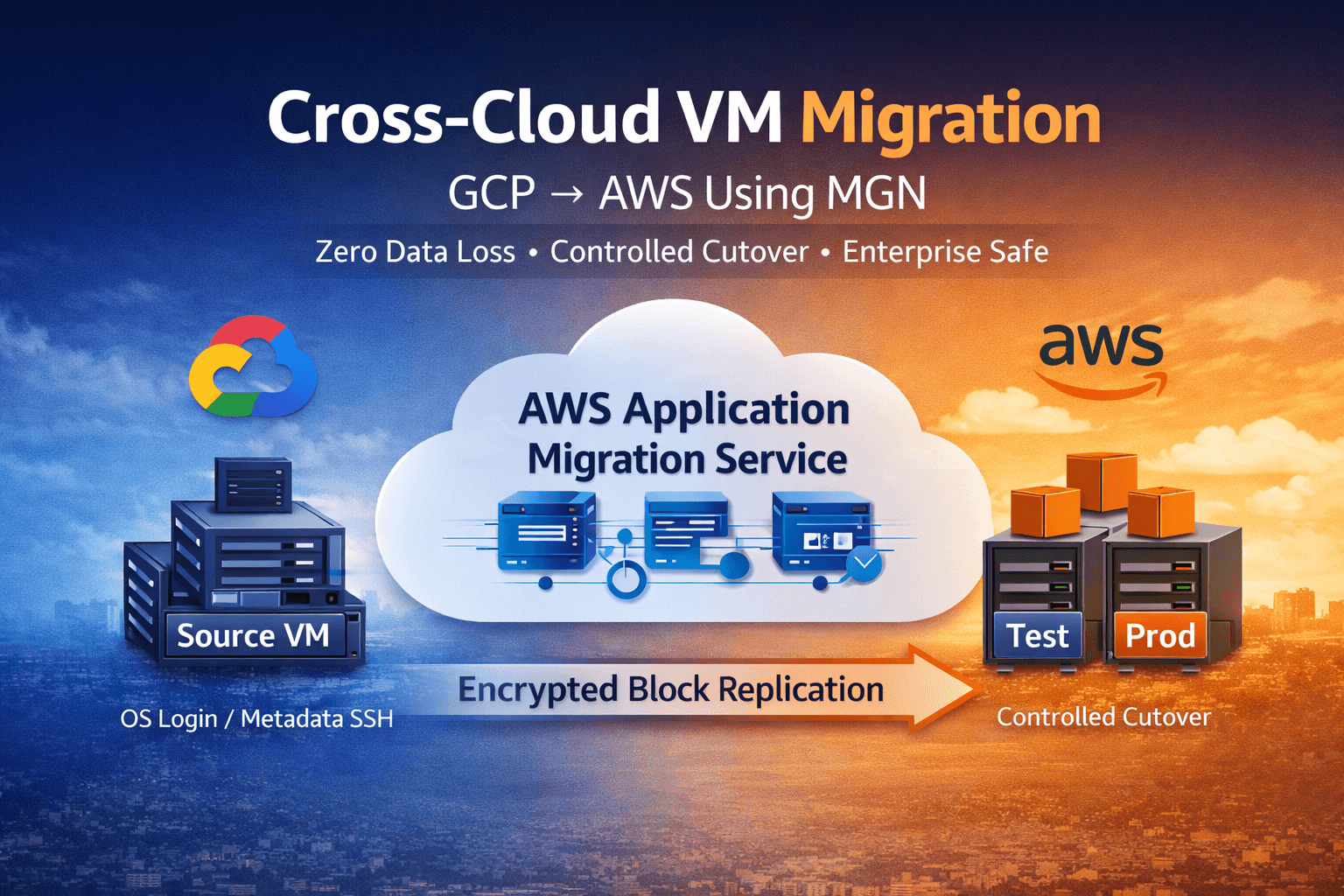
Cross-cloud VM migration is not a disk copy task. It is: An access model transformation A replication lifecycle management exercise A downtime control operation A cost boundary decision We execu
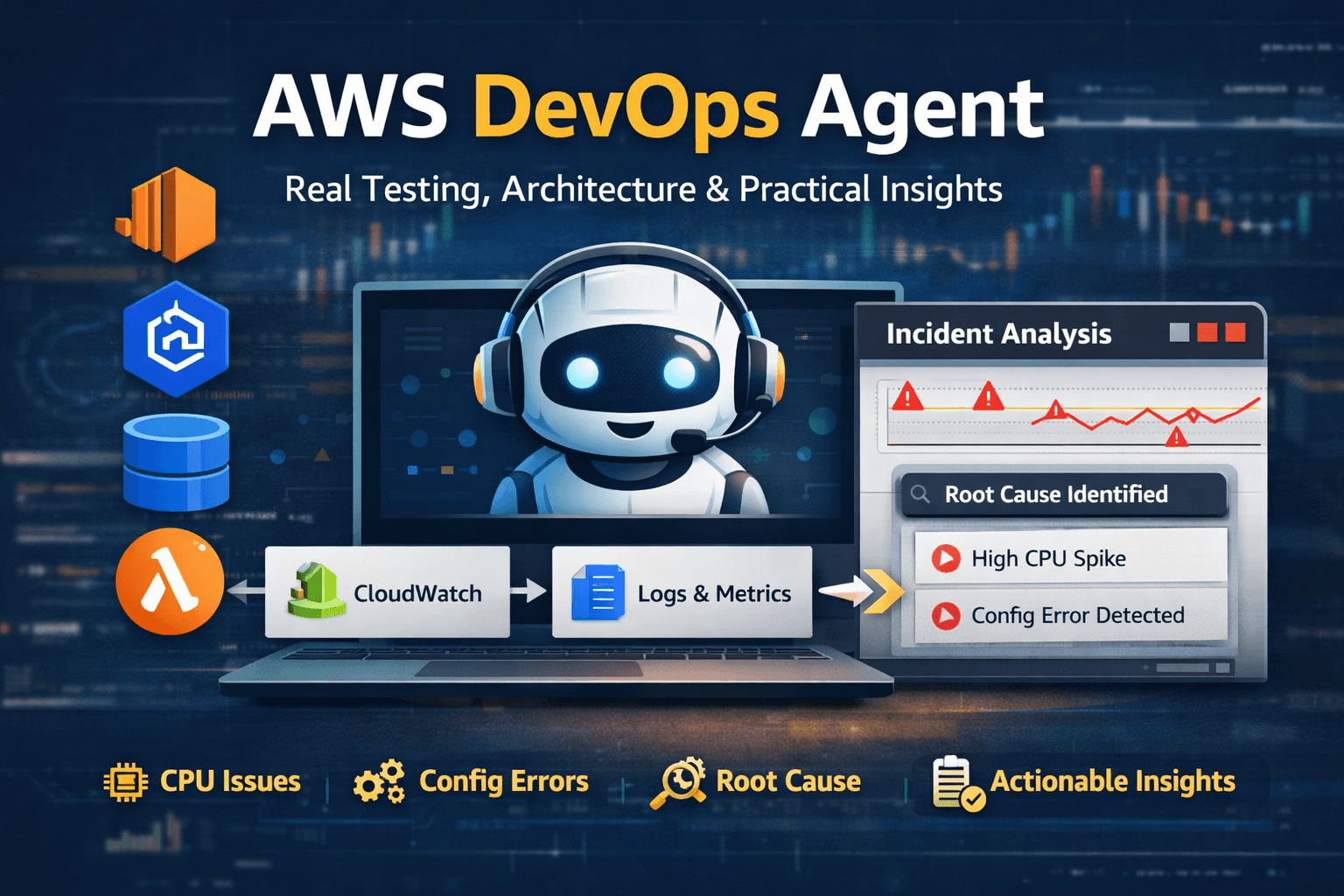
When AWS introduced AWS DevOps Agent, I was less interested in feature lists and more interested in one practical question. Can it actually reduce investigation time during real production-style failu
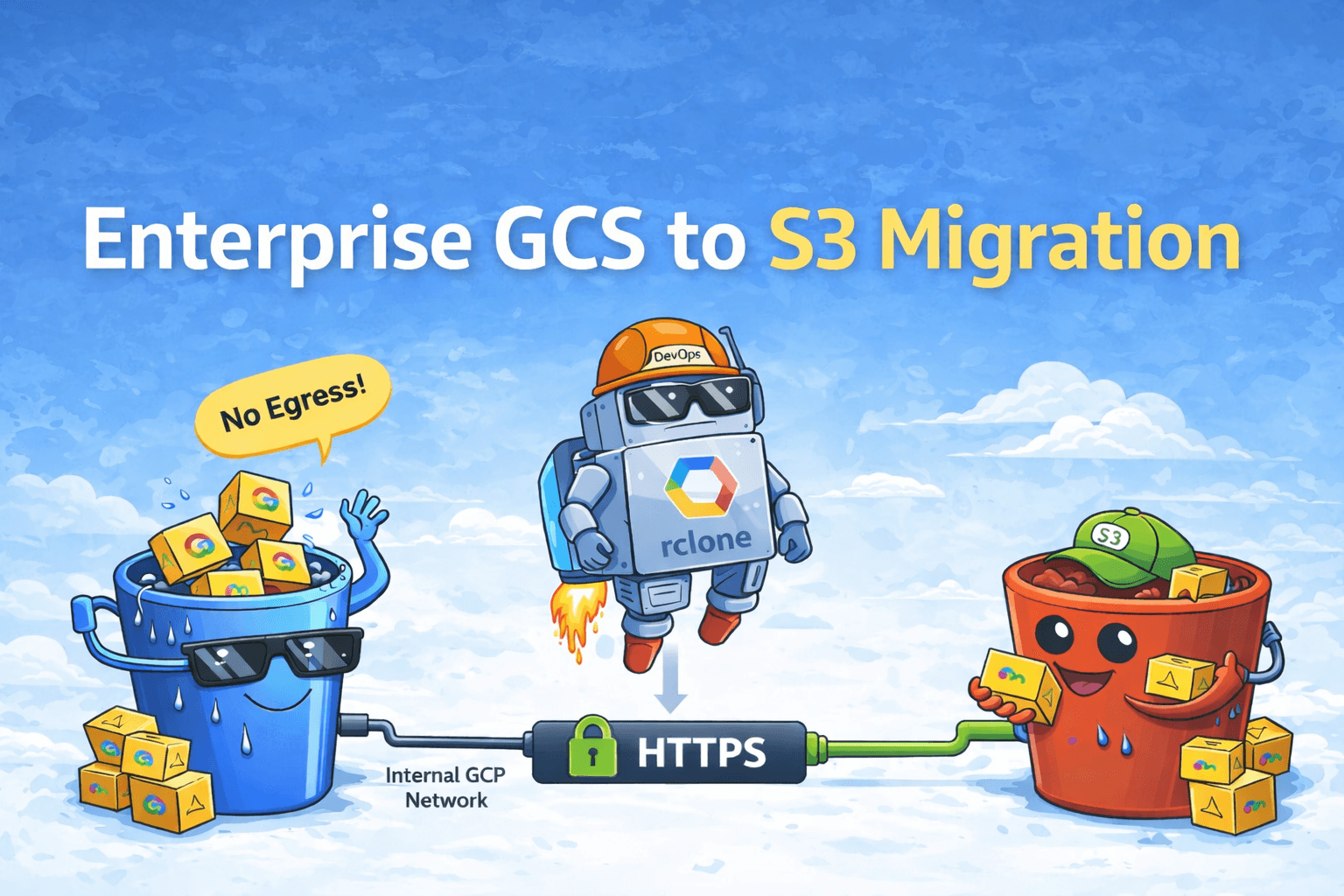
Migrating object storage across cloud providers is not a copy task.It is a cost, network, and security boundary problem. We migrated 10+ TB of object data from Google Cloud Storage to Amazon S3 under
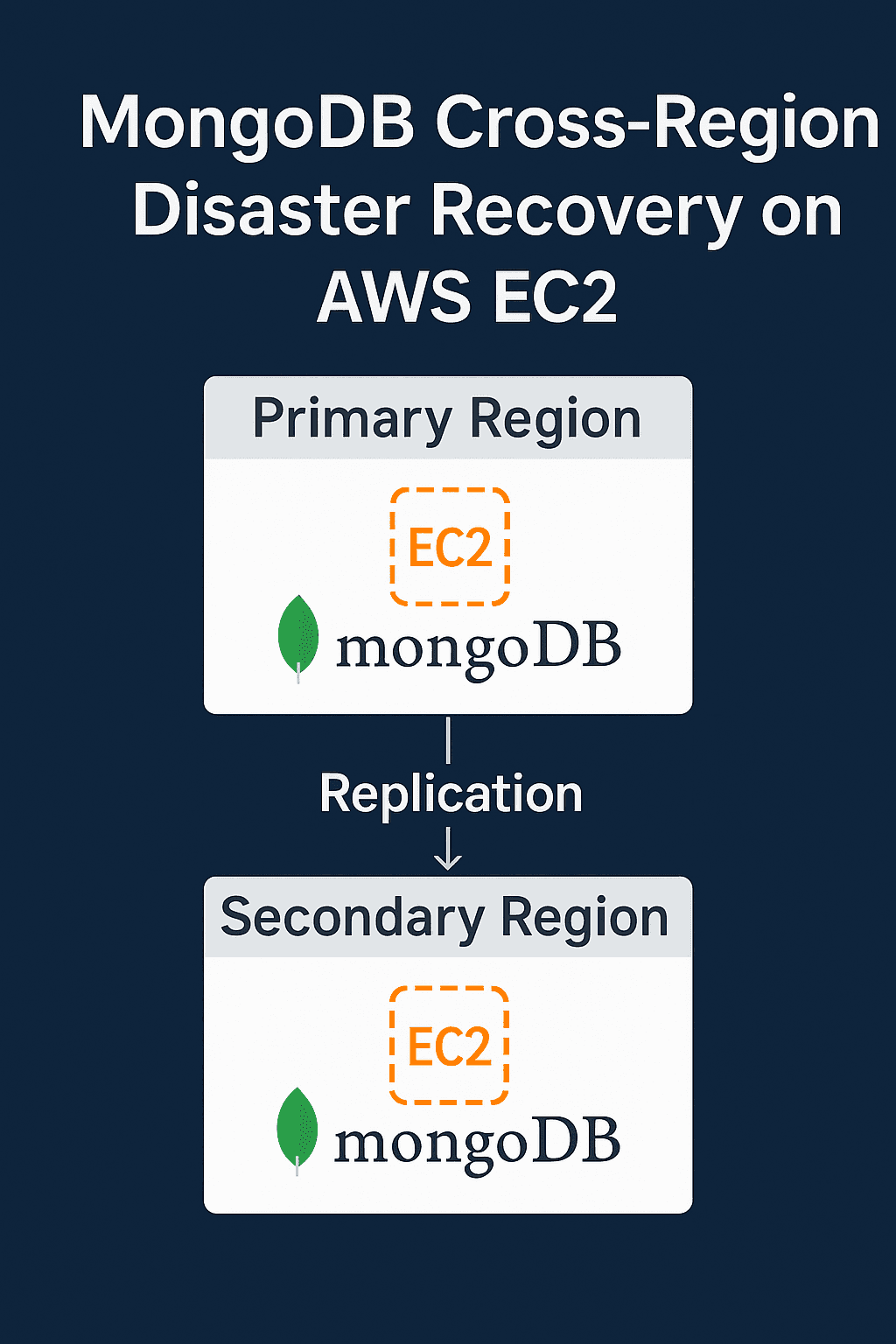
In today’s high-availability landscape, disaster recovery (DR) is more than a best practice—it's a requirement. This tutorial walks you through implementing a cross-region MongoDB DR solution using EC2 instances with public IPs. You’ll learn to replicate data between AWS regions to ensure business continuity even in regional outages.
The DR architecture consists of:
A primary MongoDB instance running in one AWS region.
A replica set member (secondary) in a separate AWS region.
Data replication between these two nodes.
📌 Diagram on page 1 shows a simple two-region EC2-based MongoDB setup with replication arrows connecting the nodes.
Launch two Ubuntu EC2 instances, one in each AWS region.
Security Groups must allow:
Run these commands on both instances:
sudo apt-get install gnupg curl
curl -fsSL https://www.mongodb.org/static/pgp/server-8.0.asc | \
  sudo gpg -o /usr/share/keyrings/mongodb-server-8.0.gpg --dearmor

echo "deb [ arch=amd64,arm64 signed-by=/usr/share/keyrings/mongodb-server-8.0.gpg ] \
https://repo.mongodb.org/apt/ubuntu jammy/mongodb-org/8.0 multiverse" | \
sudo tee /etc/apt/sources.list.d/mongodb-org-8.0.list

sudo apt-get update
sudo apt-get install -y mongodb-org
sudo systemctl start mongod
sudo systemctl enable mongod
Edit the MongoDB config file on both servers:
sudo nano /etc/mongod.conf
Set the following values:
net:
  port: 27017
  bindIp: 0.0.0.0

replication:
  replSetName: "rs0"

security:
  authorization: enabled
Then restart the MongoDB service:
sudo systemctl restart mongod
Log in to the Mongo shell on the primary:
mongosh
Run this setup:
rs.initiate({
  _id: "rs0",
  members: [
    { _id: 0, host: "primary-public-ip:27017", priority: 2 },
    { _id: 1, host: "secondary-public-ip:27017", priority: 1 }
  ]
})
Verify it using:
rs.status()
On the primary:
db.createUser({
  user: "adminUser",
  pwd: "securePassword",
  roles: [{ role: "root", db: "admin" }]
})
Reconnect with auth:
mongosh --host primary-public-ip:27017 -u adminUser -p securePassword --authenticationDatabase admin
Insert on primary:
use testdb
db.testCollection.insertOne({ message: "Testing replication", timestamp: new Date() })
Read from the secondary:
mongosh --host secondary-public-ip:27017 -u adminUser -p securePassword --authenticationDatabase admin
Enable read preference:
db.getMongo().setReadPref("secondaryPreferred")
use testdb
db.testCollection.find()
Stop MongoDB on the primary:
sudo systemctl stop mongod
Then, on the secondary, verify promotion:
rs.status() // This node should now be PRIMARY
Bring the primary back:
sudo systemctl start mongod
📝 8. Checklist / TL;DR
Here’s a quick reference summary to validate your setup:
✅ EC2s launched in two AWS regions
✅ MongoDB installed and configured
✅ Replica set initialized
✅ Authentication set up
✅ Replication verified
✅ Failover tested
This guide demonstrates how to:
Set up a MongoDB replica set across AWS regions.
Secure it with authentication.
Test real-time replication and failover.
While this is a basic manual setup, production deployments may benefit from:
Private networking (e.g., VPC peering).
Automation via Terraform or Ansible.
Monitoring using MongoDB Ops Manager or Prometheus.
